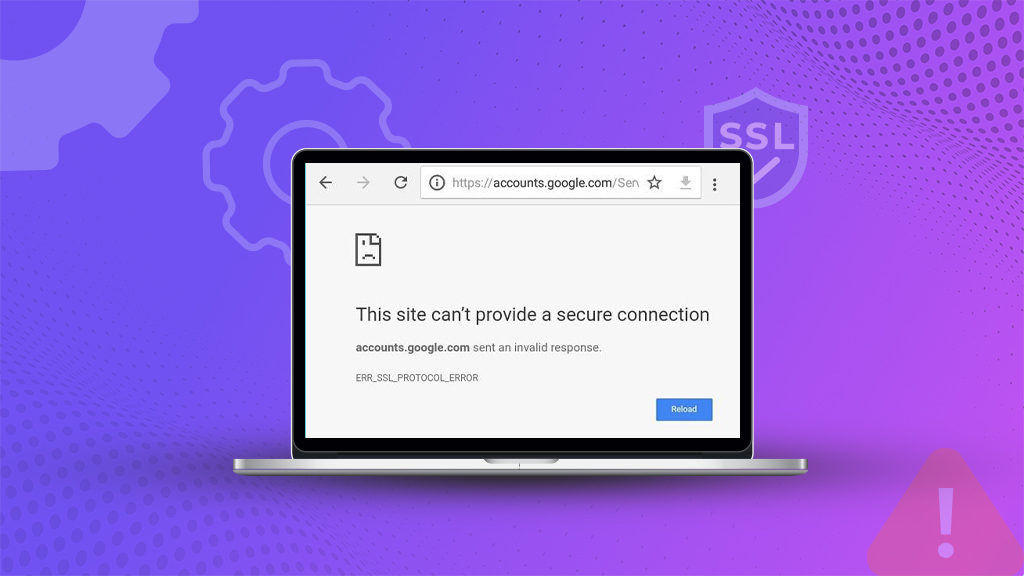




Does your web browser display the DNS_PROBE_FINISHED_BAD_CONFIG message on your screen? I know exactly how frustrating that is – especially when you need to access something important right now.
Here’s what’s happening: your browser can’t figure out where to find the website you’re trying to visit. It’s like having an address book with the wrong phone numbers – you know who you want to call, but you can’t actually reach them.
This DNS config error affects millions of users daily across Windows, Mac, and Android devices. About 70% of cases get resolved with the first three solutions below, which take less than 10 minutes total.
This guide covers seven proven methods to fix DNS_PROBE_FINISHED_BAD_CONFIG, starting with simple router restarts that resolve most cases, then progressing to advanced fixes like switching DNS servers (Google’s 8.8.8.8 or Cloudflare’s 1.1.1.1), clearing the system cache, and updating network drivers for stubborn errors.
Before You Start Troubleshooting
Before diving into technical fixes, rule out these simple causes first. These take 30 seconds and solve a surprising number of cases:
Check your URL spelling – Typos are actually the #1 cause of DNS errors. Double-check what you typed in the address bar.
Try a different browser – Open the same website in Firefox, Edge, or Safari. If it works there, the problem is browser-specific (usually due to a cache or settings issue).
Check if the website is down: visit https://downforeveryoneorjustme.com, or https://www.isitdownrightnow.com. If the site is down for everyone, it’s not your DNS.
Verify your internet connection – Make sure you’re actually connected to WiFi or ethernet. Check if other websites load.
Try incognito/private mode – Open an incognito window (Ctrl+Shift+N in Chrome). If the site loads there, it’s your browser extensions or cache.
Check physical connections: if you’re on Ethernet, make sure the cable is firmly plugged in. If on WiFi, check your signal strength.
If none of those quick checks solve it, move on to the seven solutions below.
What is the DNS_PROBE_FINISHED_BAD_CONFIG Error?
When you type something like “youtube.com” into your browser, there’s this whole behind-the-scenes process that has to happen first. Your computer needs to translate that readable domain name into an actual IP address (which looks like 142.250.185.46). DNS handles that translation.
So when the DNS probe finishes, a bad config error pops up; it means that the translation process broke somewhere along the way. Your browser looked up the website’s address and came back empty-handed.
Six things trigger this error:
- Something messed with your DNS settings. It could have been a Windows update. Could’ve been you poking around in network settings. It could’ve been your router having a moment.
- Your computer’s holding onto old, corrupted DNS information. This happens all the time with Windows machines – they just refuse to let go of outdated DNS data.
- Your router’s trying to pass DNS requests along to your ISP, but fumbling it somehow. Some routers act as the middleman and occasionally drop the ball.
- Your internet provider’s DNS servers are down or slow. More common than ISPs would like you to think.
- Something’s blocking DNS traffic – usually an overprotective firewall or VPN software that doesn’t realize it’s causing problems.
- A recent update broke your network configuration. See this constantly after Windows does one of its significant feature updates.
Common DNS Errors You Might See
Quick rundown of the different DNS error messages browsers throw at you:
1. DNS_PROBE_FINISHED_BAD_CONFIG
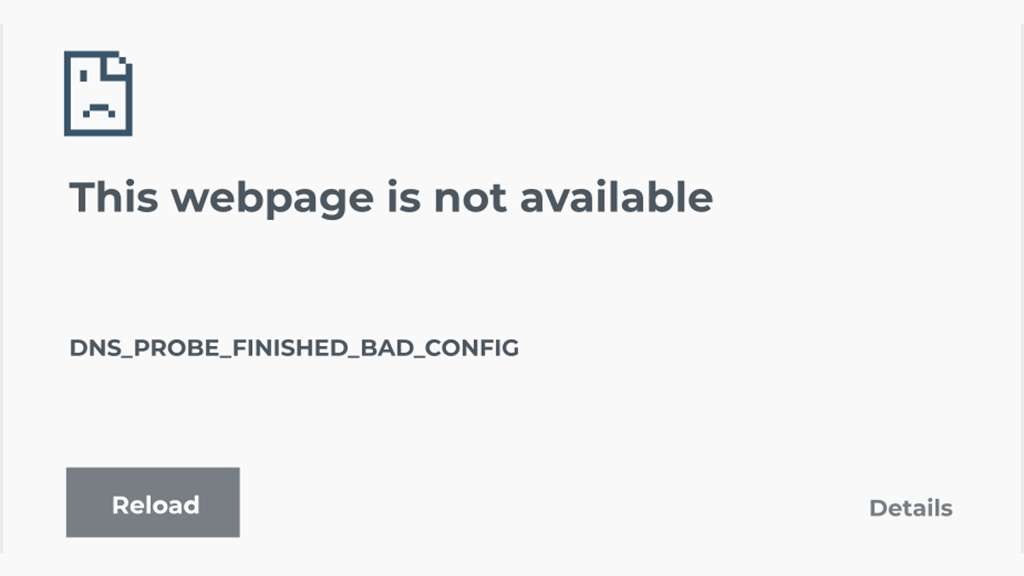
Your device’s DNS settings are misconfigured. Like having the wrong GPS coordinates – you’re looking for addresses in the wrong place. Usually caused by incorrect DNS settings on your computer or router.
2. DNS_PROBE_FINISHED_NXDOMAIN
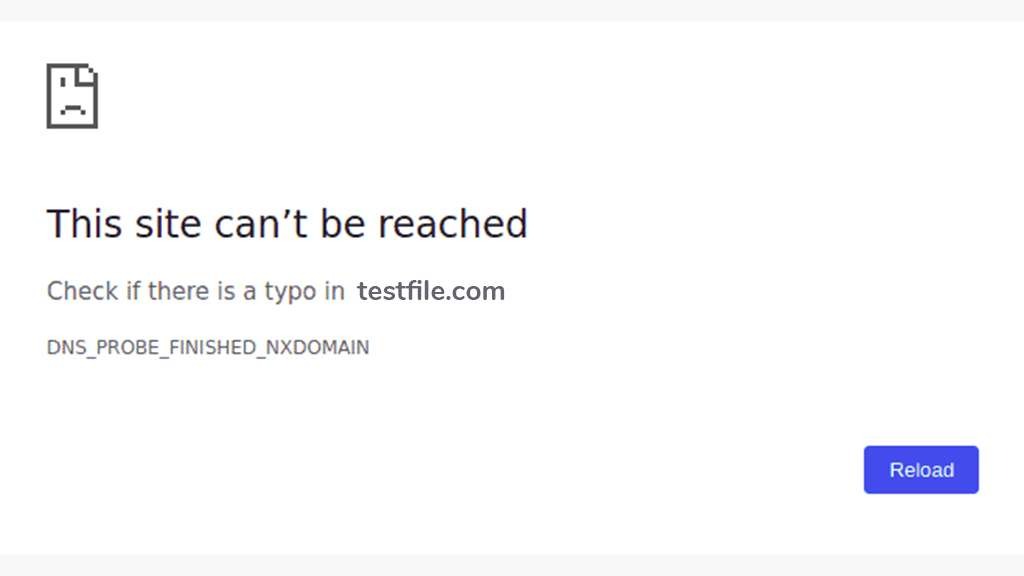
You’re trying to visit a nonexistent website. Either you typed the address wrong, or the website shut down. Please double-check your spelling and make sure it’s a real site.
3. DNS_PROBE_FINISHED_NO_INTERNET

Browsers word these differently, but it’s all the same problem:
- This web page is not available.
- This site can’t be reached.
- Safari can’t find the server.
- We’re having trouble finding that site.
All the same issue. The upcoming fixes work for every variation.
7 Quick Fixes for DNS_PROBE_FINISHED_BAD_CONFIG Error
1. Restart Your Router and Computer (Fixes 40% of Cases)
Yeah, “turn it off and back on again” – I know how it sounds. But this legitimately fixes about 40% of cases. Just gotta do it right.
Pull the power plug from your router. Don’t mess with any buttons – physically unplug it. Then wait a full 30 seconds. Some routers need that time to discharge and clear everything out correctly.
While you’re waiting, restart whatever device is having the problem. Computer, phone, tablet, whatever.
Plug your router back in. You’ll see lights start blinking and cycling through their startup sequence. Give it a couple of minutes to fully boot – wait till all the lights settle down and look normal.
Now reconnect to your WiFi and try loading a website.
If this works, but then the error comes back later? Your router’s DNS configuration is the real problem. Skip down to solution #4 for that.
2. Clear Out Your Browser Cache (Quick Test)
Browsers save chunks of websites on your computer, so pages load faster when you come back. Usually works great. Sometimes the saved data gets corrupted, causing weird problems like this.
Before you clear everything, try this quick test – open the problem website in a different browser. Or try incognito/private mode in your regular browser. Works there? Clearing your cache will probably fix it.
Each browser’s a little different:
Chrome: Three dots in the corner > More tools > Clear browsing data. Check “Cached images and files” and clear it.
Edge: Three dots > Settings > Privacy, search, and services > Clear browsing data > Choose what to clear. Check the cache option.
Firefox: Three lines > Settings > Privacy & Security > Cookies and Site Data > Clear Data. Make sure “Cached Web Content” is checked.
Safari: Safari menu > Settings > Privacy > Manage Website Data > Remove All.
Even if this doesn’t fix your DNS error, you’ve cleaned out some junk that was slowing things down anyway. Win-win.
3. Flush Your DNS Cache (Fixes ~30% of Remaining Cases)
Your computer keeps a local stash of DNS lookups it’s already done. Typically speeds things up, but when that cache gets old or corrupted, you get errors. Flushing it forces your computer to look everything up fresh.
For Windows:
You need the Command Prompt with admin rights. Search for “cmd” in your Start menu, right-click it, and pick “Run as administrator.”
Now run these commands one at a time – type each one and hit Enter:
ipconfig /flushdns
ipconfig /registerdns
ipconfig /release
ipconfig /renew
netsh winsock reset
After that last one, restart your computer. This process clears out corrupted network data that’s causing connection issues.
Mac users:
Open up Terminal. It’s in Applications, under Utilities, if you’re hunting for it.
Copy this command and hit Enter:
sudo dscacheutil -flushcache; sudo killall -HUP mDNSResponder
It’ll ask for your password. Type it in (you won’t see anything as you type, that’s normal).
Android:
Settings > Network & Internet > Advanced > Private DNS. Switch it to “Off”, wait about 10 seconds, switch back to “Automatic.”
Then turn Airplane mode on, wait a few seconds, and turn it back off.
Try your connection now. Works? Great. Breaks again tomorrow? Then you’re getting bad DNS from somewhere upstream – check solution #4.
4. Switch to Google or Cloudflare DNS (Highly Effective)
Switching to public DNS servers fixes both issues. Google DNS 8.8.8.8 and Cloudflare DNS 1.1.1.1 are free, fast, and reliable alternatives to your ISP’s DNS servers. Many web hosting providers recommend using public DNS for better performance and uptime. OpenDNS 208.67.222.222 is another solid option with built-in security features.
Windows:
Control Panel > Network and Sharing Center. Click your connection (WiFi or Ethernet), then Properties. Find “Internet Protocol Version 4 (TCP/IPv4)” in the list and click Properties.
Pick “Use the following DNS server addresses” and type in:
- Preferred DNS: 8.8.8.8 (that’s Google) or 1.1.1.1 (Cloudflare)
- Alternate DNS: 8.8.4.4 (Google) or 1.0.0.1 (Cloudflare)
Click OK on everything and close it all out.
Mac:
System Preferences > Network. Click your connection, then Advanced. Go to the DNS tab.
Click the little + button, then add 8.8.8.8, then click + again for 8.8.4.4. Click OK and Apply.
Android:
Settings > Network & Internet > WiFi. Long-press your network name, then select Modify Network. Select Advanced options, then change IP settings to Static.
Scroll down, find DNS 1, and put in 8.8.8.8. DNS 2 gets 8.8.4.4. Save it.
Test right away. If it works now, your ISP’s DNS was the culprit. You can leave it on public DNS permanently – no downsides unless you need something specific from your ISP’s DNS (which is super rare).
5. Delete Temporary Files (Worth a Shot)
Computers hoard temporary files for speed, but corrupted temp files can sometimes cause connection problems. Cleaning them out can fix DNS issues.
Windows:
Hit Windows key + R together. Type %temp% and press Enter.
You’re now looking at your Temp folder. Press Ctrl+A to select everything, then Delete. Some files won’t delete because they’re in use – that’s fine, just skip them.
Mac:
Open Finder. Press Cmd+Shift+G, type ~/Library/Caches and press Enter.
Look through those folders. You can delete anything that looks network or browser-related. Or, delete everything in the Caches folder – macOS will rebuild what it needs.
Ubuntu/Linux:
Easy one: the /tmp folder empties itself when you reboot. Just restart.
Restart your device after cleaning the temp files and test your connection.
6. Turn Off Antivirus and Firewall Temporarily (For Advanced Cases)
Third-party antivirus programs – Norton, McAfee, Bitdefender, those guys – sometimes get overzealous. They inspect your DNS traffic and occasionally block legitimate stuff by mistake. Your firewall settings might need adjustment.
Windows Defender:
Settings > Update & Security > Windows Security > Virus & threat protection. Turn off Real-time protection.
For the firewall: Windows Security > Firewall & network protection > click whichever network you’re on > turn it off.
Got a VPN running? Disconnect that, too.
Try the website now. Loads? Your security software was the problem. Turn everything back on – don’t leave it off. Then add your browser to the firewall exceptions, or find the DNS filtering setting in your antivirus and disable it, usually under “Web protection” or a similar name.
7. Update Network Drivers (Last Resort Fix)
Network drivers translate between your OS and your actual network hardware. When they’re outdated or corrupted, they can cause DNS failures.
Windows:
Type “device manager” in the taskbar search. Open it up.
Expand “Network adapters” to see your Wi-Fi or Ethernet adapter listed there.
Right-click it, pick “Update driver”, then “Search automatically for updated driver software.”
Restart when it’s done.
Mac:
Easier here – macOS updates drivers automatically through system updates.
Apple menu > About This Mac > Software Update. Install whatever’s available.
Android:
Settings > About Phone > System Updates. Follow whatever prompts it gives you to install updates.
Restart after updating and test your connection.
Quick Fix Summary
Need the fast version? Here’s what fixes most DNS_PROBE_FINISHED_BAD_CONFIG errors:
Try a router restart first. Fixes about 40% of cases right there. Still broken? Flush your DNS cache -that gets another 30% or so. Still nothing? Switch to Google DNS (8.8.8.8) – that handles most of what’s left.
Those three steps resolve roughly 70% of DNS configuration errors. The other solutions are for the stubborn cases that won’t quit. All this works on Windows 10, Windows 11, macOS, Chrome, Firefox, Edge, Android – everything.
FAQs
If it returns every few hours or after a restart, your router’s DNS settings are incorrect. The fixes above work temporarily because they clear your local cache, but your router continues to hand out bad DNS server addresses. Log into your router (usually 192.168.1.1 or 192.168.0.1), find the DNS settings, and manually set them to 8.8.8.8 and 8.8.4.4.
Usually no. DNS_PROBE_FINISHED_BAD_CONFIG is typically caused by network configuration issues rather than malware. However, certain types of malware (DNS hijackers) can modify your DNS settings to redirect you to malicious websites.
Yes, absolutely. ISPs run their own DNS servers, and when these servers malfunction or go offline, all customers experience DNS errors.
Chrome, Edge, Brave, and Opera all use Chromium’s engine, which displays “DNS_PROBE_FINISHED_BAD_CONFIG” for DNS errors. Firefox and Safari show different error messages for the same underlying problem:
1. Firefox: “Hmm. We’re having trouble finding that site.”
2. Safari: “Safari Can’t Find the Server.”
3. Chrome/Edge: “DNS_PROBE_FINISHED_BAD_CONFIG.”
Yes, 8.8.8.8 is completely safe. It’s Google Public DNS, a free DNS service launched in 2009 and used by hundreds of millions of people worldwide.