


Lauren’s jewelry store had been online for three months when her sister called one Saturday afternoon.
“Hey, I tried ordering those turquoise earrings you posted on Instagram, but your website keeps giving me some weird errors.”
Lauren pulled up her site on her laptop. Everything looked normal. She tested the checkout herself – worked fine.
Then she grabbed her phone.
The “Add to Cart” button was off-screen. Product images wouldn’t load. And when she finally reached the checkout, an SSL certificate warning appeared: “Your connection is not private.”
She’d been losing sales for weeks without knowing it.
Your website might work perfectly on your device, but visitors access it from dozens of devices and connections – Android phones on slow connections, Safari on iPads, Chrome on old laptops. If something breaks for even 20% of them, you’re throwing money away.
Website errors don’t announce themselves. They quietly bleed traffic, tank Google rankings, and send customers to competitors.
This guide covers the eight most common website errors in 2026 and shows you exactly how to fix them.
What Are Website Errors? (And Why They’re Killing Your Traffic)
Website errors happen when communication between a visitor’s browser and your server breaks down.
Think of ordering at a drive-through. You place your order (the browser sends a request), the kitchen prepares it (the server processes), and you get your food (the server sends a webpage). Errors occur when something fails – maybe the kitchen’s out of ingredients (server error), the speaker’s broken (connection issue), or the item doesn’t exist (404 error).
These aren’t minor annoyances. They have real consequences:
Google rankings drop. Search engines factor in speed, security, and mobile performance. Sites with persistent errors get pushed down.
Bounce rates skyrocket. Research shows 53% of mobile users leave if a page takes over three seconds to load. That’s half your audience gone.
Trust evaporates. One security warning or broken form, and people assume your business is unprofessional. They won’t return.
Most errors follow predictable patterns. Once you know what to look for, fixes take minutes.
The 8 Most Common Website Errors in 2026 (And How to Fix Them)
1. 404 Error – Page Not Found
You click a promising link and get a “Page Not Found” error instead of the content.
Why do they happen?
- Deleted pages without redirects
- Typos in URLs
- Moved blog posts during redesigns
- External sites linking to old content
The fix:
Open Google Search Console and check the Pages section. Google tracks every 404 while crawling your site.
For each broken URL: does this need a redirect, or can I ignore it?
If the old page had valuable content, set up a 301 redirect to your current relevant page. WordPress users can install the Redirection plugin in two minutes.
If it’s just a random typo, ignore it.
Prevention: Before deleting pages, search your site for internal links. Tools like Screaming Frog show where the URL appears.
2. Slow Page Load Speed
Speed is now a direct Google ranking factor.
You search for something, click a result, and wait. Three seconds pass. Five seconds. You hit back and try the next option.
That’s what happens when your pages drag.
Test your speed:
Run PageSpeed Insights. You’ll get mobile and desktop scores plus what’s slowing you down.
Four immediate fixes:
Compress images. Large photos kill speed. Use TinyPNG to shrink files under 200KB.
Enable caching. This saves your site on visitors’ devices. Most WordPress hosting providers include built-in caching.
Minify code. Strip extra spaces from CSS and JavaScript. Many CDNs handle this automatically.
Add a CDN. Content Delivery Networks (CDNs) store your site’s content worldwide. Australian visitors load from Sydney instead of Dallas. Cloudflare offers a free plan.
| Tool | Purpose | Cost | Best For |
| WP Rocket | Auto optimization | $59/year | WordPress |
| Cloudflare | Global CDN | Free–$200/mo | Any platform |
| TinyPNG | Image compression | Free–$50/year | Product photos |
| GTmetrix | Diagnostics | Free–$14.95/mo | Monthly audits |
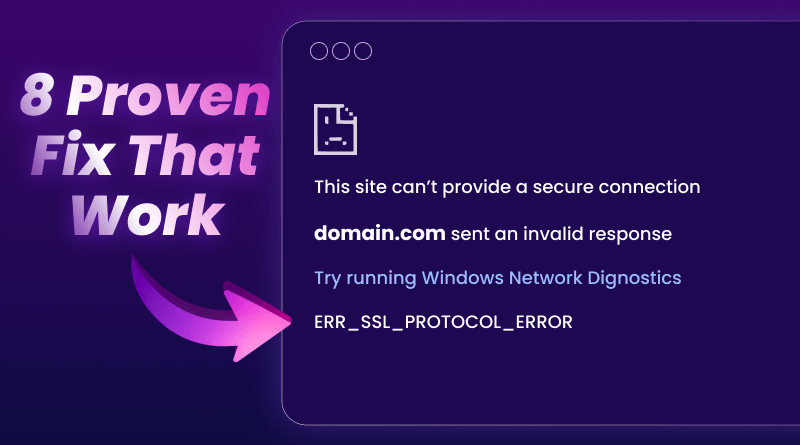
3. SSL Certificate Errors
That padlock in your browser means HTTPS encryption.
No padlock triggers warnings: “Your connection is not private.”
Nobody enters payment info on sites that their browser calls unsafe.
Common problems:
- Expired certificates
- Mixed content (HTTP elements)
- The certificate doesn’t match the domain
Quick fix:
Most hosts offer free SSL through Let’s Encrypt. Using cPanel hosting? Log in, find SSL/TLS settings, and install or renew. It takes five minutes.
Force HTTPS sitewide. In WordPress, go to Settings → General and update both URLs to https://.
Hunt mixed content. Press F12, check the console for security warnings, and update HTTP links to HTTPS.
4. Mobile Responsiveness Issues
Over 60% of traffic comes from phones. Google judges sites primarily on mobile performance through mobile-first indexing.
A broken mobile phone = invisible to most visitors.
Test mobile:
Use Google’s Mobile-Friendly Test. It shows what breaks – tiny text, overlapping buttons, wide content.
Fixes:
Use responsive themes. Modern themes auto-adjust for screen sizes.
Verify this viewport tag exists:
html
<meta name=”viewport” content=”width=device-width, initial-scale=1″>
Make buttons at least 48×48 pixels for thumbs.
Use 16px+ text so people don’t zoom.
5. Broken Links and Forms
Broken links are annoying. Broken forms lose money.
Someone fills your contact form, clicks submit… nothing. They’re finding competitors whose sites work.
Find problems:
Broken Link Checker scans your site in minutes.
Test forms monthly – contact, newsletter, checkout.
Repair:
Update or remove broken external links. Fix internal links or redirect.
Verify forms: emails reach the inbox, required fields work, submit buttons trigger, confirmations display.
6. Server Errors (500, 502, 503)
Server errors mean backend crashes – not your code, but the hosting environment.
Triggers:
- Traffic spikes
- Plugin conflicts
- Corrupted files
- Memory limits exceeded
Troubleshooting:
Clear browser cache. If it persists, it’s server-side.
WordPress: rename plugins folder via FTP. If fixed, reactivate one by one.
Check error logs in the hosting panel.
When to call support:
If the basics don’t work, contact your host. Quality VPS hosting providers diagnose issues quickly, so you don’t have to wait days.
7. Cross-Browser Compatibility
Your site looks perfect in Chrome. Safari shows a broken layout.
Browsers interpret code differently.
Testing:
Check Chrome, Firefox, and Safari. Windows users add Edge. BrowserStack tests dozens of combinations.
Solutions:
Use CSS autoprefixers. Avoid browser-specific code. Test forms in multiple browsers. Run W3C validators.
8. Core Web Vitals Failures
Google measures user experience through three metrics:
LCP: Main content load time. Target under 2.5 seconds.
FID: Response to clicks. Under 100 milliseconds.
CLS: Content jumping while loading. Under 0.1.
Measure:
Check PageSpeed Insights or Search Console.
Improve:
LCP: compress images, lazy loading, upgrade hosting FID: reduce JavaScript, remove unused scripts
CLS: set explicit image dimensions
Essential Tools to Diagnose Errors
Google Search Console: Free monitoring for indexing, security, and mobile errors. Set weekly alerts.
PageSpeed Insights: Mobile and desktop performance with prioritized recommendations.
Screaming Frog: Finds broken links, missing tags, and redirects. Free under 500 pages.
Browser DevTools: Press F12. Console shows JavaScript errors. The network reveals slow resources.
| Tool | Type | Function | Pricing |
| Search Console | Web | SEO monitoring | Free |
| Screaming Frog | Desktop | Audits | Free – £149/yr |
| GTmetrix | Web | Speed analysis | Free – $14.95/mo |
| Pingdom | Web | Uptime tracking | Free – $85/mo |
Final Thoughts
Website errors compound until you notice damage in analytics or revenue.
Start with easy wins. Run Search Console and fix the listed errors. Test speed with PageSpeed Insights and tackle bottlenecks. Check broken links monthly, test forms quarterly.
Small fixes create real results – better rankings, lower bounce rates, higher conversions.
The difference between successful sites and struggling ones often comes down to catching errors before they multiply. Need hosting that prevents these problems? BigCloudy’s solutions include optimization, security monitoring, and performance tools that keep sites running smoothly.
FAQs
404 means the page doesn’t exist – deleted, moved, or mistyped URL. Client-side issue. 500 means the server crashed while processing your request – plugin conflicts, coding errors, or resource overload. Server-side problem.
Monthly, test important pages: homepage, products, contact forms, and checkout. Set Search Console for weekly email reports to catch urgent issues. High-traffic sites need automated monitors. Quality hosting, like BigCloudy , includes built-in uptime monitoring.
Absolutely. Google factors in speed, mobile usability, and security. Slow pages drop. Mobile-broken sites lose visibility. Security warnings hurt credibility. Even 404s matter if other sites link to dead pages – wasted backlink value. Fix quickly to protect rankings.
Yes. SSL encrypts all data – contact forms, newsletter signups, and login credentials. Google boosts HTTPS sites. Chrome shows “Not Secure” for HTTP sites. Most hosts, including BigCloudy’s cPanel hosting, offer free SSL certificates.
Frequent 500 errors, slow speeds despite optimization, and regular downtime. Check the host status page. Run GTmetrix – server response under 200ms is good. Poor performance plus slow support means upgrade time. Managed VPS hosting provides faster support and better reliability.