


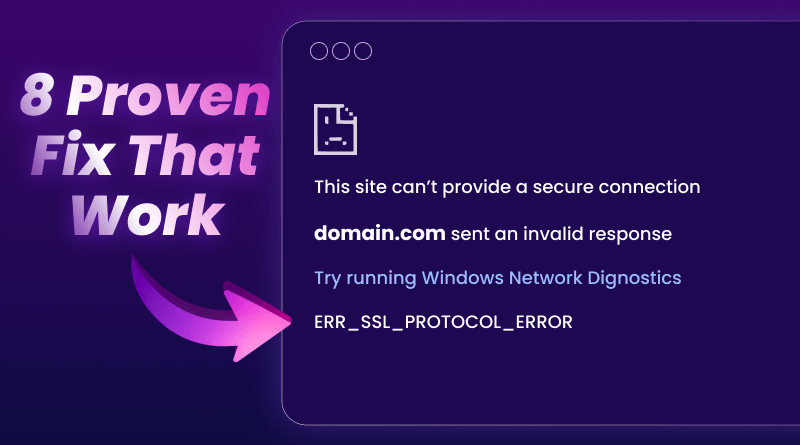
You click a link. Instead of the website loading, you get a red warning screen: Your connection is not private, or an SSL connection error.
Your browser can’t verify that the site is safe. It’s blocking you rather than risking your data being intercepted.
According to SSL.com’s 2025 Certificate Report, expired certificates account for 15% of all SSL errors, while misconfigured chains cause another 23%. In 2026, browsers demand TLS 1.3 and stricter validation. These errors show up more than they used to.
SSL connection errors usually fix in under 10 minutes. Whether you’re visiting a site or running one, here’s what breaks and how to fix it.
What Breaks During SSL Connection Errors
Every HTTPS connection does a quick handshake. Your browser asks the website to prove its identity. The website shows a certificate. Your browser checks that certificate against trusted authorities.
Something goes wrong in that verification? SSL connection error.
SSL vs TLS: What Changed
People use both terms, but TLS replaced SSL years ago. SSL 3.0 doesn’t even work on Android anymore.
Websites now use TLS 1.3 , which is faster and more secure than TLS 1.2. Older browsers or devices struggle to connect to sites using newer protocols.
Why Errors Spike in 2026
Certificates now last for one year instead of three. More renewals – more chances for something to expire.
Chrome, Firefox, and Safari tightened security requirements. Sites that passed checks in 2023 may now fail.
95% of Google search results are HTTPS sites. More sites using SSL – more potential misconfigurations.
Common Error Messages Decoded
Browsers show specific error codes. What these codes mean:
ERR_CERT_AUTHORITY_INVALID
Your browser doesn’t trust the certificate issuer. It could be self-signed or from an authority your browser doesn’t recognize.
Does a small business set up its own certificate instead of getting one from Let’s Encrypt? Visitors see this error.
NET::ERR_CERT_COMMON_NAME_INVALID
The certificate was issued for a different domain name. The hostname in your URL doesn’t match the Common Name or Subject Alternative Name in the certificate.
SSL Handshake Failed
The initial connection attempt died. Usually, it means outdated protocols, mismatched cipher suites, or a firewall blocking.
8 Fixes for SSL Connection Errors
Start with #1. Try each fix in order.
Fix 1: Check Your System Clock (30 seconds)
Certificates only work during specific date ranges. Computer thinks it’s 2019? Certificates issued in 2024 look invalid.
Windows: Settings → Time & Language → Turn on “Set time automatically“
Mac: System Settings → General → Date & Time → Enable “Set time and date automatically“
Mobile: Settings → General → Date & Time → Set Automatically
Restart the browser after fixing.
Fix 2: Dump Browser Cache (1-2 minutes)
Browsers cache SSL certificate data. Cached data sometimes goes bad, especially after sites renew their certificates.
Chrome:
Three dots → Settings → Privacy and security → Clear browsing data → Select “Cookies” and “Cached images” → Clear data
Firefox:
Menu → Settings → Privacy & Security → Clear Data
Safari:
Safari → Settings → Privacy → Manage Website Data → Remove All
Close the browser completely. Not just tabs – quit the app.
Fix 3: Update Your Browser (2-5 minutes)
Old browsers don’t support TLS 1.3. Sites requiring modern protocols won’t load.
Chrome: Settings → About Chrome
Firefox: Menu → Help → About Firefox
Safari: Updates through macOS System Updates
Updates usually install automatically. Restart if prompted
Fix 4: Clear SSL State (Windows) (30 seconds)
Windows stores SSL certificate info separately from the browser cache.
Search “Internet Options” → Content tab → “Clear SSL state” → OK
Fix 5: Disable Antivirus SSL Scanning (1 minute)
Security software scans HTTPS traffic. This can interfere with legitimate connections.
Temporarily disable SSL/HTTPS scanning in your antivirus. Error disappears? That’s your issue.
Re-enable it afterward. Add the trusted site to antivirus exceptions instead.
Fix 6: Check the Certificate (1 minute)
Click the padlock (or warning icon) in your address bar → “Certificate” or “Connection is not secure.”
Check:
- Expiration date (still valid?)
- Issued to domain (matches URL?)
- Issuer name (recognized authority?)
SSL Labs’ SSL Server Test shows detailed certificate health: https://www.ssllabs.com/ssltest/
Fix 7: Fix Mixed Content (5-10 minutes)
Installed SSL, but the site still shows “Not secure”? Mixed content issue.
Some resources (images, scripts, CSS) still load over HTTP instead of HTTPS.
WordPress quick fix:
Install the “Really Simple SSL” plugin. Redirects HTTP to HTTPS automatically.
Manual method:
Settings → General → Change WordPress Address and Site Address from http:// to https://
Use the Better Search Replace plugin to update database URLs
Fix 8: Stop Redirect Loops (3-5 minutes)
Getting “Too many redirects” after enabling SSL?
Site can’t decide whether to load HTTP or HTTPS. Creates an endless loop.
Edit wp-config.php (via File Manager or FTP):
define(‘FORCE_SSL_ADMIN’, true);
if (strpos($_SERVER[‘HTTP_X_FORWARDED_PROTO’], ‘https’) !== false) {
$_SERVER[‘HTTPS’] = ‘on’;
}
Add before “That’s all, stop editing!” Line.
Server-Side Fixes for Site Owners
Visitors reporting SSL errors on YOUR site? The problem is server-side.
Renew Your Certificate
Certificates expire, & Browsers immediately flag expired certificates as insecure.
Most hosts offer automated renewal through Let’s Encrypt.
BigCloudy users:
Hosting account → Site Tools → Security → SSL Manager → Select domain → Install
Set calendar reminders 30 days before expiration as backup.
Install Complete Certificate Chain
SSL certificates need a complete chain of trust – your certificate → intermediate certificates, → root certificate authority.
Missing links break validation.
Check your chain:
text
openssl s_client -connect yourdomain.com:443
All intermediate certificates should appear. Contact your certificate provider if the chain is incomplete.
Enable TLS 1.3
Running TLS 1.0 or 1.1? Modern browsers won’t connect. Browsers require TLS 1.2 minimum. TLS 1.3 is becoming standard.
Check server configuration. Enable TLS 1.3. Most modern hosting providers support this, but you may need to update the server software.
Keep Your Site Secure
SSL errors aren’t mysterious. A clear action plan fixes most issues in minutes. Check the date/time, clear the cache, and update the browser. Most errors resolve quickly.
Site owners: Priority checklist:
- Automatic certificate renewal (Let’s Encrypt or hosting provider)
- Monitor expiration dates (SSL Labs or hosting alerts)
- Test site across browsers and devices regularly
Security impacts user trust, search rankings, and conversion rates. Minutes spent fixing SSL issues pay off in visitor confidence and business results. Running into SSL issues on BigCloudy hosting? Contact support for help. Free SSL certificates are included with all plans.
FAQs
Absolutely. Let’s Encrypt issues over 300 million trusted certificates used by major sites worldwide. They’re perfect for blogs, small businesses, and portfolios. What is the main difference between paid certificates? Paid ones offer extras like organization validation (proves your business is legit) or warranty coverage up to $1.75M for e-commerce sites.
Mobile date/time settings go wrong after battery drain. Check the phone clock first. Old phones may require OS updates to enable modern TLS support.
Click padlock icon → Check certificate is issued to the correct domain, issued by a recognized CA (Let’s Encrypt, DigiCert, GlobalSign), and hasn’t expired.
Yes. Google prioritizes valid SSL certificates. Sites without proper HTTPS rank lower, get less traffic, and see higher bounce rates.
Mixed content. Site loads HTTPS, but some resources still load HTTP. Use the browser console (F12) to find which resources need updating.
Modern certificates last one year maximum. Set up auto-renewal through Let’s Encrypt. Check quarterly that it’s working.
SSL is outdated. TLS replaced it; when people say SSL certificate, they mean TLS certificate. The old name stuck because everyone knows it.