


Last Sunday, my friend texted me in panic. He needed to update email settings for Monday’s product launch, but cPanel wouldn’t even load. Just a spinning wheel.
He had already wasted 30 minutes refreshing the page and checking his internet connection.
Here’s what most people do wrong: they immediately panic and start clicking everything. Or they assume their hosting is broken and spend hours researching new providers.
Most cPanel headaches aren’t as mysterious as they seem. After helping dozens of website owners troubleshoot these issues, I’ve noticed the same 9 problems keep popping up.
Let’s see each one so you can fix them yourself without waiting for support.
Why These Issues Actually Cost You Money
cPanel runs your website’s backend, everything from email accounts to databases and SSL certificates. When it breaks, you’re not just locked out of a dashboard. Your emails stop working, visitors see error pages, and your business basically goes offline.
Think about it: every hour your email’s down means missed customer messages. Every minute your site shows errors means lost sales. That’s why knowing how to diagnose and fix common problems yourself matters way more than just saving time.
The Most Common cPanel Problems I See
Email Problems That Kill Communication
When Emails Won’t Send
You compose a message, hit send, and… nothing. Or worse, it bounces back with some cryptic error code about “mail server rejection” or “SMTP authentication failed.”
Usually, this happens because:
- MX records are pointing to the wrong mail server
- Your email account hit its daily sending limit
- SMTP credentials got changed or corrupted
- The email account’s quota is maxed out
Spam filter issues
Your emails land in spam folders, or legitimate messages from customers never reach you. I’ve seen businesses lose thousands because important client emails were silently filtered out.
The culprit? Missing SPF and DKIM records. These work like digital signatures, proving that your emails actually come from you. Without them, email providers treat you as spam.
Forwarding Fails
You set up info@yoursite.com to forward to your Gmail, but messages disappear into the void. Check for typos in the forwarding address first (seriously, I’ve seen this one a dozen times). Also, some email providers block auto-forwards from unknown senders.
Website Access Errors That Frustrate Visitors
404 Page Not Found
Visitors click a link and get dumped on a “Page Not Found” screen. Could be deleted files, broken permalinks, or a messed-up .htaccess file causing bad redirects.
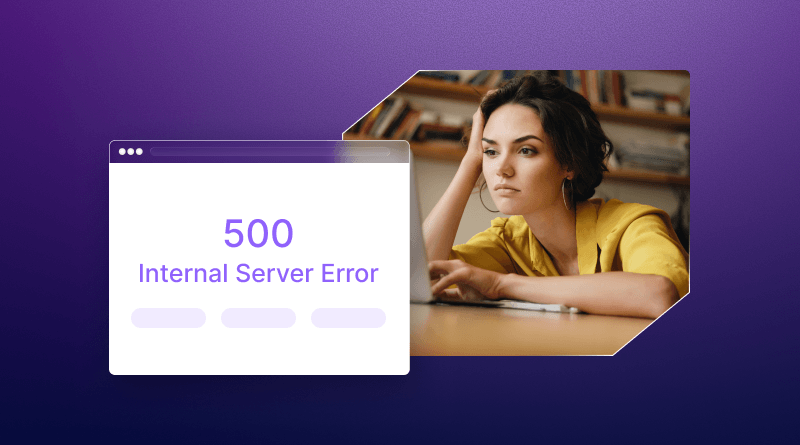
500 Internal Server Error
When you see a 500 error, check these three things first: your .htaccess file for syntax errors (line 5 is common), PHP memory limit in your wp-config.php, and recent plugin installations in the past 24 hours.
Real talk: I spent three hours debugging a 500 error last month. The culprit? One extra space after a semicolon in .htaccess. Check syntax first – it’ll save you time.
Redirect Loops
Your browser gets stuck loading the same page repeatedly. Happens when redirect rules contradict each other – like when your .htaccess file says “redirect A to B” but your CMS says “redirect B to A.”
Database Connection Failures
When your database connection fails, your whole site goes blank or displays “Error establishing database connection.”
Common triggers:
- Wrong database password in your config file
- The database user lost their permissions somehow
- The MySQL server crashed or restarted
- Database corruption from a bad plugin or theme
A client recently panicked about database errors during the offer period. It turned out their host had upgraded MySQL servers without notice and changed the connection string. Five-minute fix once we knew what happened.
File Upload Headaches
Can’t Upload Files
You try uploading images or documents, but you get errors. Usually, it’s hitting the file size limit (often set ridiculously low at 2MB), incorrect folder permissions, or running out of disk space.
Permission Denied Errors
Linux servers control file access through permissions. If these get scrambled – which happens more often than you’d think after migrations or updates – you’ll get locked out of editing your own files.
SSL Certificate Warnings
Nothing scares visitors faster than seeing “Your connection is not private” in bright red. This happens when SSL certificates expire – and trust me, it’s more common than you’d think – or aren’t installed correctly, or auto-renewal fails silently.
Quick Reference: What Each Error Actually Means
| Issue | What You’ll See | Most Common Cause |
| Email not sending | Bounce messages, SMTP errors | MX records are pointing to the wrong place |
| 404 errors | Page not found | Broken links or deleted files |
| 500 errors | Internal server error | Corrupted .htaccess |
| Database errors | Connection failed | Wrong credentials in config |
| Can’t upload files | Upload failed | File size limit too low |
| SSL warnings | Not secure warning | Expired certificate |
When You Need Actual Human Help
Using WHM (If You Have Access)
WHM gives you way more diagnostic power than regular cPanel. If you’ve got reseller hosting or a VPS, you can:
- Check if services like Apache or MySQL are actually running (they might’ve crashed)
- See real-time resource usage to spot CPU or memory spikes causing problems
- Access more detailed error logs that show exactly what’s breaking at the code level
Writing Support Tickets That Get Fast Responses
After years of dealing with support teams, here’s what actually works:
Include the specifics: Don’t just say “email’s broken.” Say “emails to Gmail addresses bounce with error code 550” and attach a screenshot of the error.
List what you’ve tried: “I already checked MX records and verified account quotas” tells support you’re not a total beginner, so they skip basic troubleshooting.
Mention when it started: “This broke right after I updated WordPress to 6.4.” immediately tells them where to look.
With solid hosting like BigCloudy’s cPanel plans, support teams typically respond within an hour because they have better diagnostic tools and see these issues regularly.
How Good Hosting Prevents Most of This
Here’s something I’ve learned after years of troubleshooting: most cPanel issues trace back to hosting infrastructure, not user error.
All-SSD Infrastructure: Traditional hard drives? They choke under pressure. SSDs don’t have this problem. SSDs handle traffic spikes without choking, which means fewer random 500 errors.
Pre-Optimized PHP Settings. Most 500 errors are caused by PHP running out of memory. BigCloudy configures PHP limits correctly from day one, rather than artificially setting them low.
Automated SSL Renewals: Expired SSL certificates are embarrassing and preventable. Automatic Let’s Encrypt renewals mean you never wake up to “Not Secure” warnings scaring customers away.
Built-In DDoS Protection: Attack traffic can make cPanel completely inaccessible. DDoS attacks used to take sites offline for hours. Not anymore – network-level protection blocks them before they reach your cPanel.
Daily Backups Ready to Restore: When something breaks beyond your ability to fix it, yesterday’s backup is sitting there waiting in cPanel’s backup interface. One click restores everything.
The real advantage? Their support team has seen these exact cPanel issues thousands of times across their infrastructure. They’re not reading from a script – they’re diagnosing based on patterns specific to their setup.
Conclusion
Here’s your action plan: start with browser cache and credentials (fixes 40% of issues, according to my experience). If that doesn’t work, check error logs for specific clues.
If basic troubleshooting doesn’t resolve the issue, contact your host’s support with specific details about the error and what you’ve already tried. Good hosts actually care about keeping your site online – it’s in their interest too.
And if cPanel issues keep happening every few weeks? That’s your hosting infrastructure telling you it’s not up to the job. Quality hosting with proper server configuration, proactive monitoring, and knowledgeable support pays for itself in time saved and headaches avoided. Need more troubleshooting help? Check out our guide on fixing common WordPress errors or learn about speeding up slow websites to prevent performance-related issues.
FAQs
Yes, significantly. Hosts like BigCloudy use optimized PHP settings, automatic SSL renewals, and daily backups built into cPanel. This proactive setup eliminates common errors before they affect your site.
Most quality hosts respond within 30 minutes to 2 hours. BigCloudy offers 24/7 support via live chat and tickets, with response times typically under an hour for urgent cPanel access or configuration problems.
Usually browser cache or IP blocking. Try a different browser first – if that works, clear your cache completely. If it fails everywhere, your IP address has probably been blocked after too many failed login attempts. Contact hosting support to whitelist your address.
Absolutely. If problems persist despite troubleshooting, it’s worth switching hosts. BigCloudy includes free cPanel migrations with its plans, so you don’t lose data or experience downtime during the transfer.
In cPanel, click Metrics → Errors. Look for red-flagged entries at the top – they show what broke and exactly when. Copy the error code before contacting support.
Your website can’t talk to its database. Usually wrong credentials in your config file, lost permissions, or the database server being down. Start by comparing the credentials in your config file with those shown in cPanel’s MySQL Databases.