



Website migrations often go wrong, not because the process is hard, but because a single mistake can wipe out months of SEO, break key pages, or cause hours of downtime. If you are already seeing traffic drops, broken links, slow-loading pages, or recurring 404 errors, a full-proof migration isn’t optional; it is critical.
The good news is that most hosting companies now offer free website migration services, but knowing what to check yourself and prepare in advance is what helps keep your rankings safe.
This guide will give you a complete, easy-to-follow checklist to migrate your site smoothly while protecting SEO, redirect structures, and user experience.
What Is Website Migration?
Migration refers to moving your website from one site to another. This might include switching your hosting service, changing your domain name, or migrating to a different platform.
It mainly involves transferring your files, databases, email accounts, and DNS settings to the new location. A successful and seamless website migration keeps everything working right, helps maintain your position in search results, and ensures the right audiences can still find you.
Why Website Migration Matters for SEO and Performance?
Website migration affects how search engines see your site and how fast it loads for visitors.
- Migration changes can confuse search engine crawlers if URLs, redirects, and site structure aren’t handled correctly.
- Broken links and absent redirects lead visitors to error pages. Slow page load times and improper site organization can quickly lower your rankings.
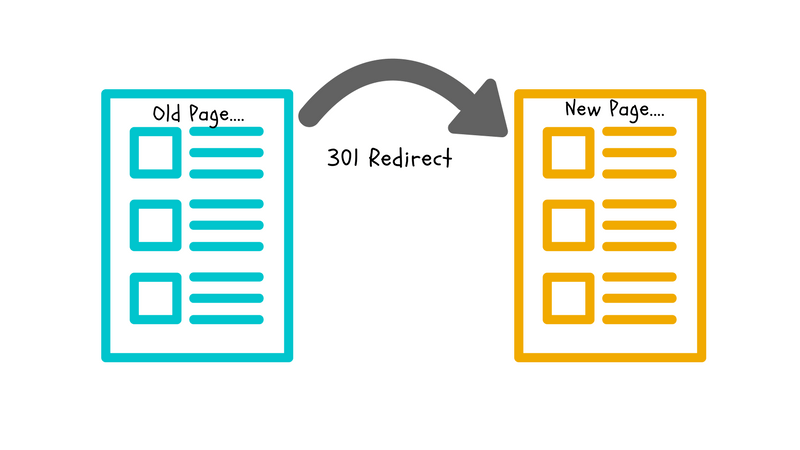
- Correct 301 redirects direct both users and search engines from URLs to updated ones while preserving your existing authority.
- Additionally, Google Search Console support is also required after migration. Submitting your new sitemap and monitoring indexing errors helps search engines understand your new setup and maintain visibility.
Types of Website Migration (Overlook)
If you are unaware of the types of website migration, take a glance below, which will give you a better understanding, even before you migrate your website to a new host.
Hosting transfer: Switching to a new server while your domain stays the same.
Domain migration: Completely changing your website’s address, usually when rebranding or buying a better domain name.
CMS migration: Moving between platforms like WordPress, Magento, Laravel, or Node.js, where each one stores data differently.
URL structure modifications: Changing the naming and organization of your pages without altering your host or domain.
Server enhancement: Moving from shared hosting to VPS or cloud hosting to gain greater power and reliability.
Full redesign migration: Starting fresh with a new design and code while protecting the SEO work you’ve already done.
Pre-Website Migration Checklist
Go through the pre-website migration checklist below. Prepare everything beforehand to avoid problems later.
- Backup Everything: Download a full site backup of files, databases, and email accounts. Store them separately from your current hosting to recover if something goes wrong.
- Document present performance: Record current traffic numbers, search rankings, and page load speeds. Save all that data to compare the performance after migration.
- List all your URLs: Create a sheet to maintain all the pages, posts, and product sites. Identify broken links or 404 errors. All these links ultimately become your redirect map.
- Choose Your New Hosting: Verify server compatibility, including PHP and MySQL versions. See performance & stability checks also. Free migration support is often included, so check if your new host offers it.
- Set Up Staging Environment: Create a test version of your new hosting to practice the migration process safely. This way, you can catch problems before they affect visitors.
- SSL certificate requirements: Verify if your new host provides a free SSL certificate.
- Inform Your Team: Stay clear about the migration timeline with customers, stakeholders, and team members. Plan for off-peak migration hours.
- Check Domain and DNS Settings: Check if you have access to the domain registrar and note the current DNS records. Before 24 – 48 hours of migration, lower the Keep Time To Live (TTL) settings.
Technical Website Migration Checklist
These steps are helpful for developers handling technical transfers. Follow this checklist to learn how to migrate a website seamlessly.
Server Compatibility Check
Before moving files, ensure your new server fulfills all criteria. Confirm that the PHP and MySQL versions match or exceed those on your setup.
If you use custom software developed in Node.js or Python, check that your new server runs these languages. Look at resource needs like memory, storage, and bandwidth limits. Mismatched versions will break your site right after you move it.
Helpful Read – To get more detailed insights, see how PHP applications can speed up your website performance with BigCloudy.
Transfer Files & Databases Securely
Use secure methods to move your content. FTP migration works for basic sites, but SFTP or SSH website transfer provides encryption for sensitive data.
For large sites, Rsync website migration is faster and more reliable. Test your database import and export process on a small sample first. Many hosting companies offer free website migration services with expert teams handling these transfers.
Migrate Emails & DNS Records
Email accounts need special attention during migration. Export every email account along with its password. MX records can be configured to direct to your mail server.
Update DNS zone configurations, such as A records, CNAME records, and TXT records. When changing DNS settings during migration, updates may take 24-48 hours worldwide.
Install SSL & Force HTTPS
Security certificates must transfer to your new host. Request a new SSL certificate or move your existing one. Set up your server to force HTTPS on all pages.
Check for mixed content issues where some elements still load over HTTP. The best part is that the browsers flag insecure sites, which hurts both trust and rankings. Free SSL certificates are standard with managed WordPress hosting providers.
Review App Dependencies
Your website depends on extensions and integrations. Record every theme, plugin, and module. Include third-party services like payment gateways, analytics tools, and email marketing platforms.
Make sure your API keys and login credentials work correctly on the new server. One outdated dependency can stop features from working, so test them one by one.
SEO Website Migration Checklist
Website migration for SEO is crucial to maintain your search rankings. Use this checklist to ensure search engines detect and index your site correctly.
Compile and Map All URLs
Compile an inventory of all pages on your existing website. Develop a 1:1 redirect mapping file indicating the new destination for each former URL. Determine which pages require combining or deletion. Overlooking even a handful of pages may lead to a decline in traffic.
Implement 301 Redirects Properly
Use permanent 301 redirects so search engines know your pages have moved. Don’t create redirect chains where visitors bounce from one URL to another. Test your redirects with crawler tools before going live. Stay away from 302 redirects since they don’t help your SEO in any way.
Website Analytics & Tracking
Configure GA4 to track your new domain or URL structure. Update your Google Tag Manager containers with the correct triggers and variables. Without proper tracking, you won’t know if your migration worked.
Submit New XML Sitemap
Generate a fresh sitemap reflecting your new site structure. Submit it through Google Search Console and request indexing for essential pages. Monitor the Search Console errors section daily for crawling issues. Fixing indexing problems quickly prevents prolonged ranking drops.
Monitor Traffic & Ranking Changes
Check your 7-day performance against your pre-migration numbers. Look again at 15 days and 30 days. Some ranking changes are regular, but major drops need attention. Fix any indexing problems right away to speed up recovery.
Post-Website Migration Checklist
Your website now runs on the new hosting, but you’re not done checking things. Go through these steps to spot problems before they affect visitors.
Test your old links: Open previous URLs in Chrome, Firefox, and Safari to see if they land on the right pages now.
Watch your visitor data: Look at Google Analytics to make sure it’s counting people and recording their actions like before.
Check traffic reports: Compare numbers from this week against what you had before moving to catch any big drops.
Look at your security badge: The padlock in your browser bar should appear green without any red warnings or errors.
Check if DNS is updated: Run your domain through DNS tools to confirm it points to your new server worldwide.
Send emails: Use your business email to send messages and make sure both outgoing and incoming mail work.
Test on actual devices: Grab your phone and tablet to click buttons, open menus, and use forms yourself.
Process a test payment: Run a small transaction through your payment system and check that your CRM software connects properly.
Note down every detail about the new site and how you fixed it. These notes help when you need to move sites again or when you need to resolve similar problems later.
When Should You Migrate a Website?
Some circumstances require relocating your website, while others make it an option. Identifying these indicators helps determine the timing of migration to advantage your business.
Here are a few reasons to understand when you should migrate a website;
- Your site may require fast hosting, enhanced security, or additional capacity to support your business growth.
- If pages are taking a long time to load or your existing hosting can no longer support your traffic, it’s time to switch to faster servers. BigCloudy’s dedicated server hosting can help boost your website’s speed.
- Your hosting service does not routinely back up your website. Safeguard it from security threats and data leaks.
- Operating outdated server software that reduces performance.
- Your website fails when there is a rush of visitors or doesn’t have the necessary functionalities.
These signs mean your current setup holds you back. Moving to the right hosting environment solves performance issues, reduces costs, and provides your growing business with the necessary resources to succeed online.
Smooth Migration Best Practices
Follow these practices to reduce migration risks:
- Always test on staging first: Never make changes directly to your live site. A staging environment lets you catch problems early.
- Choose off-peak hours: Schedule your migration during the lowest traffic times to minimize the impact on visitors.
- Keep the old site live until DNS fully propagates: DNS changes take time to spread. Running both sites briefly prevents downtime.
- Document every change: Maintain detailed notes about what you modified and why. This helps with troubleshooting later.
- Use managed migration for complex sites: Professional migration services handle the technical details and provide support if issues arise.
Things To Avoid During Website Migration
Website migration with trusted web hosting platforms is seamless, but there are a few things you should consider to avoid issues during the migration.
˃ Don’t delete your old site immediately; make sure to keep it as a backup.
˃ Avoid skipping redirect testing because broken redirects are the leading cause of traffic loss.
˃ Migrate first, then make design or content changes later.
˃ Also, do not ignore mobile testing. Test thoroughly on phones and tablets.
˃ You should never forget to update internal links to match your new structure.
˃ Verify each feature individually rather than assuming it works.
Final Summary: Save Your Database For Smooth Website Migration
Website migration requires proper planning. You should consider all the pre-migration and post-migration requirements. Server compatibility, redirection, plugins, and many other things play a major role during a successful website migration.
If you’re an entrepreneur, online business owner, or running an eCommerce store, planning to move your website to a new host, BigCloudy’s free migration service makes the transition smooth and hassle-free.
If your traffic has dropped, links are breaking, or your site feels stuck, it is time to migrate your website. Let the experts at the hosting service provider offering migration services handle the technical aspects while you focus on growing your business.
FAQs
Begin with a complete backup of your files and databases. Next, pick your transfer method, whether that’s SFTP or cPanel tools. Then set up redirects, update your DNS records, and run thorough tests before making the final switch.
By exporting your files and content and importing them to the new host with the proper redirection, any website, including web.com sites, can be transferred to another hosting company.
Safe migration is taking place with DNS checkers, FTP clients, and backup plugins. Many hosts provide professional assistance for the automated migration programs.
The use of WordPress migration plugins such as Duplicator or All-in-One WP Migration makes transferring your site much easier, as they first convert your entire site into a single file, which is then automatically installed on your new host.
A professional technical migration will transfer your entire website to the new location, including files, databases, emails, and SSL certificates. It will set up the technical configurations to ensure no downtime and your site continues to operate smoothly.
Check that redirects work correctly, test every feature and form, confirm analytics is tracking visits correctly, watch Search Console for errors, and compare traffic levels to before migration.