


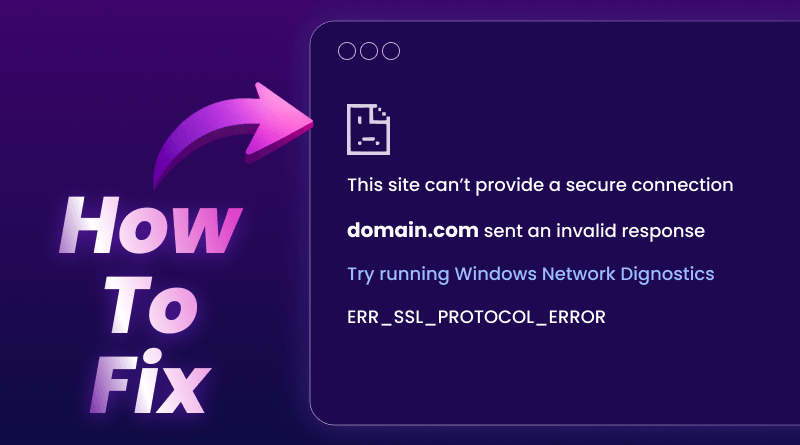
You click a link expecting to browse. Instead, you’re staring at a red warning screen displaying ERR_SSL_PROTOCOL_ERROR or This site can’t provide a secure connection.
But here’s the thing – I’ve fixed this error probably 50 times at this point, both on my own computer and for clients whose websites suddenly went dark. Most of the time, you can solve it in about 10 minutes without touching anything complicated.
Whether you’re blocked from loading a website or your own site is throwing this error at visitors, I’m going to show you what’s actually happening and how to fix it.
What’s Actually Going On With This Error
Every HTTPS site does a quick connection between your browser and its server. They quickly verify the site’s security certificate and agree on how to encrypt your data, and then let you through. Happens in milliseconds when it works.
ERR_SSL_PROTOCOL_ERROR means that the connection was broken somewhere in the middle. Your browser tried to check the site’s credentials; something went sideways, and it decided that blocking you beats risking your data being intercepted.
How This Shows Up in Different Browsers
Chrome and Edge:
This site can’t provide a secure connection.
ERR_SSL_PROTOCOL_ERROR
Firefox:
Secure Connection Failed
SSL_ERROR_PROTOCOL_VERSION_ALERT
Safari:
Safari Can’t Open the Page
Safari can’t establish a secure connection.
Same underlying problem. Different error messages.
What Actually Causes This
Your Computer’s time is Wrong
Most common cause I see. SSL certificates only work during specific date ranges. Computer thinks it’s 2020? Valid 2026 certificates look expired to your browser.
Had a client whose laptop battery died. Every reboot resets the clock to 2015. Every HTTPS site threw errors. $5 replacement battery fixed everything.
Browser Hasn’t Updated in Forever
Sites now use TLS 1.2 or TLS 1.3. Running Chrome from 2018? Your browser can’t even communicate using modern encryption protocols. The site refuses the connection because your setup is too outdated to be secure.
Corrupted Browser Cache
Browsers save SSL certificate data to speed up repeat visits. That data goes bad sometimes. Especially right after a site renews its certificate. Your browser keeps trying old SSL info that doesn’t match the new setup.
Antivirus Blocks
Norton, Kaspersky, Avast – they all scan HTTPS traffic by sitting between your browser and websites. Misconfigure that scanning process? Blocks legitimate sites.
Extensions Breaking Things
Ad blockers interfere with SSL occasionally. Seen uBlock Origin cause problems on specific sites, even though it works fine 99% of the time. Privacy Badger does this too.
VPN Issues
VPNs route you through their servers. Do those servers have SSL problems? You see errors even when the actual website works perfectly. Free VPNs are especially guilty here.
Server Side: Expired Certificate
Website owners forget to renew. Let’s Encrypt certs last 90 days. Paid ones go up to a year. Miss the renewal date? Every visitor gets blocked.
Missing Certificate Chain
SSL works in layers. Site cert → intermediate cert → root cert. Missing any piece breaks the chain. The browser can’t verify anything.
Old Server Protocols
Is the server still using TLS 1.0 or TLS 1.1? Both were deprecated in 2020. TLS 1.2 is still supported, even though it is reported as legacy in some security audits. TLS 1.3 is recommended.
Fixing This: If You’re Trying to Visit a Website
Try these in order. The first couple usually works.
1. Check Your Clock
Windows: Click clock → Change date and time settings → Flip Set time automatically to ON
Mac: System Preferences → Date & Time → Check Set date and time automatically
Quit the browser completely. Reopen.
2. Clear Browser Cache
Chrome/Edge: Ctrl+Shift+Delete → All time → Check cookies + cached images → Clear
Firefox: Ctrl+Shift+Delete → Everything → Cookies + cache → Clear Now
Close the browser. Not just the window – quit the application.
3. Clear SSL State (Windows Only)
Control Panel → Internet Options → Content tab → Clear SSL state → OK
4. Update Browser
Chrome: Three dots → Help → About (updates automatically)
Firefox: Menu → Help → About Firefox
Edge: Three dots → Help and feedback → About
After updating, quit completely. Don’t just close tabs.
5. Test in Incognito
Extensions don’t usually run in incognito mode. If the site loads there, an extension is your problem.
Chrome/Edge: Ctrl+Shift+N
Firefox: Ctrl+Shift+P
Common issue: uBlock Origin, AdBlock Plus, VPN extensions.
6. Disable Antivirus Temporarily
Turn it off just long enough to test. Site loads now? Your security software’s HTTPS scanning feature is breaking things.
Dig into antivirus settings. Look for HTTPS scanning or SSL scanning – Disable that specific feature.
Don’t leave antivirus off permanently.
7. Flush DNS
Old DNS records might point to servers with expired certs.
Windows (run as admin):
text
ipconfig /flushdns
Mac:
text
sudo dscacheutil -flushcache; sudo killall -HUP mDNSResponder
Quit and restart the browser.
If YOUR Site Throws This Error
This is urgent. SSL errors can cut traffic 70% within 48 hours.
Check Certificate Expiration
Go to SSL Labs Server Test → Enter your domain → Look for Valid until date.
Expired?
Let’s Encrypt: Run sudo certbot renew
cPanel: SSL/TLS Status → Click Renew
Paid cert: Contact your provider
On BigCloudy hosting, SSL certificates auto-renew 30 days early. No manual action needed.
Enable Modern TLS
In 2020, modern browsers deprecated TLS 1.0 and 1.1. TLS 1.3 is better. Check the SSL Labs test for Protocol Details.
Apache (ssl.conf):
text
SSLProtocol -all +TLSv1.2 +TLSv1.3
Nginx:
text
ssl_protocols TLSv1.2 TLSv1.3;
Restart the web server after changes.
Fix Certificate Chain
Comes with intermediate SSL certificates. Missing them? Browsers can’t verify your certificate.
Symptom: Works in Chrome, fails in Firefox. Or desktop works, mobile fails.
Most control panels handle this automatically. If you’re on BigCloudy, the system includes the whole chain by default.
WordPress users: If you’re on WordPress hosting, most SSL issues are handled automatically by your host.
SEO Impact
Days 1-2:
- Google flags Not Secure
- Traffic drops 50-70%
- Search Console shows security warnings.
Week 1-2:
- Rankings fall
- Competitors start outranking you.
- Warning labels in search results
30+ days:
- Possible deindexing
- Recovery takes months, even after fixing
Fix within 48 hours. Every extra day multiplies the damage.
Stop This From Happening Again
Website Owners
- SSL expiration alerts (most hosts offer this)
- Enable auto-renewal
- Uptime monitoring ( Pingdom, UptimeRobot )
- Update server software regularly
- Monthly SSL config checks
Visitors
- Automatic browser updates
- Keep OS current
- Automatic date/time sync
- Clear cache monthly
- Avoid sketchy free VPNs
When to Contact Your Host
Contact support if:
- You own the broken site
- Just migrated hosting
- Errors started after server maintenance
- Multiple users report the same issue
Ask them:
“Is my SSL certificate valid and installed correctly?”
“Does my server support TLS 1.2 and TLS 1.3?”
“Can you verify my certificate chain is complete?”
Good hosts fix this within an hour. Can’t or won’t? Time to switch.
FAQs
The browser couldn’t finish the SSL/TLS connection with the server. Common causes include expired certificates, incorrect system time, outdated TLS, and firewall interference.
Yes. Google marks it Not Secure, traffic tanks 50-70% within days, and rankings drop within weeks. Fix within 48 hours.
Visitors: 5-10 minutes (check clock, clear cache). Website owners: 15-30 minutes for certificates, 30-60 minutes for TLS updates.
Different browser versions, various clocks, different networks, and different security software. Compare the working and broken devices to find the difference.
Yes. Let’s Encrypt uses the same 256-bit encryption as paid certs. Paid ones offer extras like extended validation, but most sites don’t need that.
Technically yes. Please don’t do it. SSL errors protect you from data interception and phishing. Only bypass if testing your own development site.