


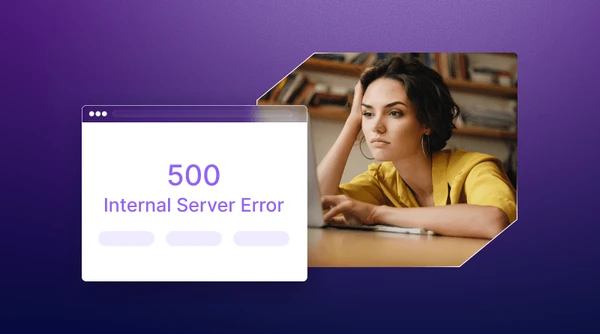
You open your website dashboard expecting an ordinary day, only to discover that nothing is working as it should. The homepage won’t load, forms stop responding, and visitors are greeted with the same message: 500 Internal Server Error.
What makes the situation even more frustrating is the lack of information. There is no clear explanation, no obvious warning sign, and no indication of where the problem started. Meanwhile, customers leave, enquiries disappear, and search engines begin to notice that something is wrong.
A 500 error can be triggered by many different factors, including corrupted configuration files, incompatible plugins, database failures, exhausted server resources, or mistakes hidden within the application’s code. These issues can also affect overall website performance, which is why many businesses regularly monitor key metrics such as page speed, uptime, and server response times. You can learn more about this in our guide on website speed optimization.
Fortunately, most 500 errors can be resolved once the underlying cause has been identified. The challenge is knowing where to begin.
In this guide, we’ll explain what a 500 Internal Server Error means, explore the most common causes, walk through the troubleshooting process, and look at the tools professionals use to get websites back online quickly.
What Does a 500 Internal Server Error Mean?
A 500 Internal Server Error is a general HTTP status code that tells you something went wrong on the server, but the server cannot identify the exact problem in a way it can show the browser.
In simple terms, your browser successfully connects to the website, but the server fails to process the request.
Think of it this way. Imagine walking into a restaurant and placing an order. The waiter takes the order correctly, and the kitchen receives it, but something goes wrong behind the scenes before the food reaches your table. The problem isn’t with you. The problem is somewhere inside the kitchen.
A 500 error works in much the same way. Unlike 400-level errors, which usually stem from problems on the visitor’s side, 500-level errors typically relate to the website itself, the server configuration, the database, installed applications, or the underlying code.
You might see the error displayed in several different ways, including:
- 500 Internal Server Error
- HTTP Error 500
- Internal Server Error
- HTTP 500
- Temporary Error (500)
Although the wording may vary, the meaning stays the same: the server encountered an unexpected condition and couldn’t complete the request.
Here’s a quick look at some common HTTP status codes.
| Error Code | Meaning |
|---|---|
| 403 | Access denied |
| 404 | Page not found |
| 500 | Internal server error |
| 502 | Bad gateway |
| 503 | Service unavailable |
One of the biggest reasons this error frustrates website owners is that it acts more like a warning sign than a diagnosis. The message tells you something is broken, but it doesn’t say exactly what broke. To identify the root cause, you’ll need to investigate server logs, configuration files, databases, applications, and other components that keep the website running.
What Visitors See Versus What Website Owners See
For visitors, a 500 Internal Server Error is simply an inconvenience. They cannot access the information they need, complete a purchase, or submit a form, so most of them leave the website.
For website owners, the consequences are much greater. Traffic drops, sales opportunities disappear, and search engines may struggle to access the site. What seems like a simple error page can quickly become a much larger business problem.
What Causes a 500 Internal Server Error on a Website?
One of the most frustrating things about a 500 Internal Server Error is that the message itself tells you almost nothing. Ten different websites can display the same error while dealing with ten completely different problems.
That is why fixing the issue often feels more like detective work than ordinary troubleshooting. The good news is that most cases can be traced back to a handful of common causes.
A Corrupted .htaccess File
The .htaccess file controls important functions such as redirects, caching rules, URL structures, and access permissions. Because the file plays such an important role, even a minor mistake can prevent the server from processing requests correctly.
Common problems include:
- Incorrect rewrite rules
- Redirect loops
- Syntax errors
- Conflicting directives
This is one of the most common reasons websites running on Apache servers encounter a 500 error.
Faulty Plugins and Themes
This problem is especially common on WordPress websites. A seemingly harmless plugin update can suddenly create compatibility issues between themes, plugins, PHP versions, and server configurations.
Some of the most common causes include:
- Failed software updates
- Incompatible plugins
- Corrupted theme files
- Conflicts between multiple extensions
In many situations, a single plugin can bring an entire website offline.
Incorrect File Permissions
Every file and directory on a server has a set of permissions that determines who can access, modify, or execute it.
Generally, files use 644 permissions, while directories use 755 permissions. If these settings are configured incorrectly, the server may lose access to essential resources and return a 500 error instead.
Exhausted Server Resources
Servers are designed to handle only a certain amount of activity at a time. When those limits are exceeded, problems start to appear.
A sudden increase in traffic, an inefficient script, or a poorly optimized application can quickly consume available resources.
Some common examples include:
- High CPU usage
- Insufficient memory
- Storage limitations
- Too many background processes
When resources become exhausted, the server may simply stop responding as expected.
Database Problems
Most modern websites depend heavily on databases to store content, user accounts, settings, orders, and other important information.
If the database stops responding, the website often stops functioning as well.
The underlying problem might involve:
- Corrupted database tables
- Failed database connections
- Slow queries
- Incorrect login credentials
Because databases sit at the centre of most websites, even a small problem can have a significant impact.
Errors in the Application Code
Sometimes the problem isn’t related to the server at all. The issue may be hidden somewhere within the application’s code.
A missing semicolon, an incompatible software package, an unsupported function, or a failed API request can trigger a server error.
Developers commonly encounter problems such as:
- PHP syntax errors
- Missing server modules
- Application conflicts
- Memory limit errors
Remember, a 500 Internal Server Error is usually a symptom rather than the actual problem. The message simply tells you something went wrong behind the scenes. The real task is finding out exactly where it happened.
Why Does a 500 Error Suddenly Appear Even When Nothing Changed?
This is probably one of the most common questions website owners ask. I didn’t change anything, so why did my website suddenly stop working?
The truth is that a lot can change behind the scenes, even when you haven’t touched a single line of code.
For example, an automatic plugin update might have installed overnight, a sudden spike in traffic could have exhausted available resources, or a scheduled background process might have failed unexpectedly. In some cases, malware infections can modify files without the owner’s knowledge, while expired SSL certificates and failed database connections can create problems that are difficult to spot at first glance.
Sometimes, the issue has nothing to do with the website itself. Hardware failures, network problems, or server misconfigurations on the hosting side can also trigger a 500 Internal Server Error.
That’s why regular monitoring matters. Problems often begin long before the error message appears on the screen. By the time visitors notice the issue, the underlying cause may have been developing quietly in the background for hours or even days.
How to Fix a 500 Internal Server Error (Step by Step)
The worst thing you can do after seeing a 500 error is change random settings and hope something works. A much better approach is to work through the problem one step at a time.
Step 1: Refresh the Page
It sounds simple, but it is worth trying. Temporary server overloads, network interruptions, or failed background processes can sometimes cause a short-lived error. Refresh the page after a few moments and check whether the website loads normally.
You can also open the website in an incognito window or use another browser to rule out browser-related issues.
Step 2: Check the Server Error Logs
Server logs are often the fastest way to find the source of the problem because they record exactly what happened when the error occurred. You can usually access them from cPanel, SSH, or your hosting control panel.
Common log locations include the following:
Apache
/var/log/apache2/error.log
Nginx
/var/log/nginx/error.log
PHP
/var/log/php/error.log
Look for warnings, permission errors, memory limit messages, or failed database connections.
Step 3: Disable Plugins One by One
If you run a WordPress website, a faulty plugin could be responsible for the problem. Access your website through the file manager or an FTP client and temporarily rename the plugins directory.
For example:
plugins_old
Reload the website. If the error disappears, reactivate the plugins one by one until you identify the one causing the problem.
Step 4: Rename the .htaccess File
A corrupted .htaccess file is one of the most common causes of a 500 Internal Server Error.
Locate the file in your website’s root directory and rename it.
For example:
.htaccess_old
Next, create a new .htaccess file and test the website again.
Step 5: Verify File Permissions
Incorrect file permissions can prevent the server from reading or executing essential files.
The standard settings are usually:
| File type | Recommended permission |
|---|---|
| Files | 644 |
| Directories | 755 |
You can update permissions through cPanel, File Manager, or SSH.
Step 6: Increase the PHP Memory Limit
A website may fail if it runs out of available memory while processing requests.
You can increase the memory limit by editing the php.ini file and adding the following value:
memory_limit = 256M
For WordPress websites, you can also add the following line to the wp-config.php file:
define(‘WP_MEMORY_LIMIT’, ‘256M’);
Step 7: Restore a Recent Backup
If the error appeared immediately after an update, restoring a backup is often the fastest solution. This lets you return the website to a stable state while you investigate the root cause.
This is exactly why automatic backups are so important. Hardware failures, corrupted files, and software conflicts can happen without warning, and having a recent backup can save hours of troubleshooting.
If the error persists after completing these steps, contact your hosting provider so they can examine the server environment in greater detail.
Debugging Tools for 500 Internal Server Issues
When a 500 Internal Server Error appears, guessing usually makes things worse. The fastest way to solve the problem is to collect server information and identify exactly where the failure occurred.
The following tools can make the process much easier.
| Tool | Purpose |
|---|---|
| cPanel Error Logs | Identify server, database, and application errors. |
| SSH | Access server logs and system resources directly. |
| WP Debug Mode | Detect WordPress plugin and theme conflicts. |
| New Relic | Monitor application performance and resource usage. |
| Query Monitor | Analyze database queries and PHP errors. |
| Browser Developer Tools | Examine failed requests and loading issues. |
If you have access to SSH, commands such as the following can help you review server logs in real time:
tail -f /var/log/apache2/error.log
tail -f /var/log/nginx/error.log
WordPress users can also enable debugging mode by adding the following lines to the wp-config.php file:
define(‘WP_DEBUG’, true);
define(‘WP_DEBUG_LOG’, true);
This creates a log file that records errors, warnings, and failed processes.
Remember, a 500 error is only a symptom. These tools help uncover the actual cause, whether it is a broken plugin, an overloaded server, a database failure, or a problem hidden deep inside the application’s code.
The Hidden Cost of a 500 Internal Server Error
A 500 Internal Server Error is more than a technical problem. When visitors encounter the error, many leave immediately, which can result in lost sales, enquiries, and conversions.
Meanwhile, advertising campaigns keep running, search engines detect the outage, and customer trust begins to decline. Even a brief period of downtime can have a lasting impact, so resolving the issue quickly should always be a priority.
How to Check Whether the Problem Is on Your Side or the Server’s Side
When a 500 Internal Server Error appears, resist the urge to start changing random settings. First, determine where the problem is coming from.
Start with these checks:
- Open the website in another browser or on a different device.
- Review any recent changes, such as plugin updates, code edits, or server migrations.
- Examine the server logs for permission errors, failed database connections, or memory-related issues.
- Check your hosting provider’s status page to see whether any outages are ongoing.
- Contact your hosting provider if the source of the problem remains unclear.
This simple process can save hours of unnecessary troubleshooting and help you focus on the actual cause instead of guessing your way through it.
Why Reliable Hosting Makes a Bigger Difference Than Most People Realize
A 500 Internal Server Error is often seen as a website problem, but in many cases, the hosting environment plays an equally important role.
Reliable hosting is about much more than storage space and bandwidth. It involves proactive maintenance, intelligent resource allocation, continuous security monitoring, automated backups, and fast technical support when something goes wrong.
This is one reason many website owners pay close attention to the infrastructure behind their websites. At BigCloudy, servers are monitored around the clock so we can detect unusual activity, performance issues, and resource spikes before they affect customers. If an issue does occur, the support team investigates it quickly to minimize downtime and restore services as efficiently as possible.
The goal is simple: spend less time dealing with server problems and more time focusing on growing the website itself.
Conclusion
A 500 Internal Server Error can feel overwhelming when it appears without warning. One moment everything is running smoothly, and the next moment visitors are staring at an error page while you try to figure out what happened.
Fortunately, these problems are often easier to solve than they first appear. Whether the cause is a faulty plugin, a corrupted configuration file, exhausted server resources, or a hosting environment issue, a methodical approach will usually lead you to the answer.
More importantly, this is a reminder that backups, monitoring, security checks, and regular maintenance should never be treated as an afterthought.
And hopefully, the next time you open your dashboard and see that familiar error message, you won’t panic. You’ll know exactly where to look, what to check, and how to get your website back online.
FAQs:
Yes, but only in certain situations. If the error is caused by a temporary spike in traffic, a failed background process, or a short-lived server issue, the website may start working normally again without any action. However, if the problem involves corrupted files, plugin conflicts, incorrect permissions, or database failures, you’ll usually need to troubleshoot manually.
The error itself is not dangerous. It simply indicates that the server couldn’t process a request. However, the underlying cause could be serious, especially if the issue is related to malware, corrupted data, server misconfigurations, or hardware failures.
Yes, it can. Search engines expect websites to be accessible and responsive. If a website continues to display 500 errors for an extended period, search engines may have difficulty crawling and indexing pages, which can eventually affect rankings and organic traffic.
Yes. Faulty plugins are one of the most common reasons behind this error, particularly on WordPress websites. An incompatible update, damaged files, or conflicts between multiple plugins can prevent the website from functioning properly.
Yes, it can happen. Shared hosting environments have limited resources, and high memory usage, increased CPU consumption, or sudden traffic spikes can sometimes trigger server-related errors. Choosing a reliable hosting provider with proper resource management can help reduce the chances of this happening.