


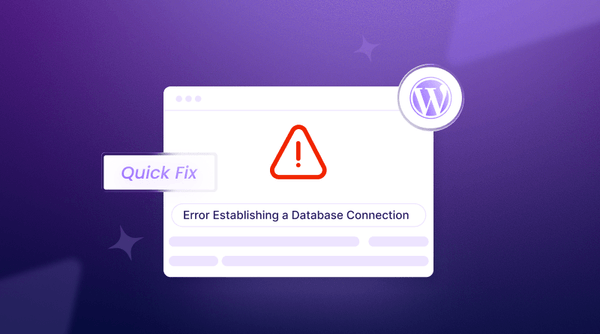
A WordPress website can look perfectly healthy until the database connection breaks. When that happens, WordPress cannot retrieve the content, settings, users, and other data it needs, so it displays the “Error Establishing a Database Connection” message instead of the website.
The tricky part is that the message does not point to one specific fault. The database credentials may be wrong, the database user may lack access, MySQL or MariaDB may be unavailable, or the server may have run into resource or connection limits. A recent migration, password change, or plugin update can also trigger the problem.
The quickest way to fix it is to trace where the connection fails instead of changing WordPress files at random. Start with what changed immediately before the error appeared, then work through the relevant checks.
Quick Diagnosis: What Should You Check First?
The right place to start depends on when the error appeared. A sudden failure after a migration points to a different problem than an error that appears only during heavy traffic.
| What happened? | Check this first |
|---|---|
| The error appeared after a WordPress migration | Check DB_NAME, DB_USER, DB_PASSWORD, and DB_HOST in wp-config.php |
| The database password was recently changed | Make sure DB_PASSWORD matches the current database user password |
| Several websites stopped working at the same time | Check MySQL or MariaDB availability |
| The error appears during traffic spikes | Check CPU, RAM, PHP workers, and database connection limits |
| The error started after a plugin update | Temporarily disable the recently changed plugin |
| The error followed an unexpected server shutdown | Check the database for possible table corruption |
Start with the event that happened immediately before the error appeared. It can narrow the troubleshooting path considerably and help avoid changing settings that were never causing the problem.
What Causes “Error Establishing a Database Connection” in WordPress?
WordPress doesn’t keep your website content inside its PHP files. Posts, users, settings, WooCommerce records, and plenty of other site data live in a MySQL or MariaDB database. When WordPress knocks on that database’s door and gets no usable response, it throws the Error Establishing a Database Connection message. Understanding the difference between a server and a database can help you better understand how these components work together to keep your website running.
The reason behind that failed connection can vary. A typo in wp-config.php is enough to break it, but so is a database user without the right permissions. The database server itself may be unavailable, tables may have become corrupted, or the server may simply be dealing with more connections and resource demand than it can handle. A recent migration can also leave WordPress pointing at the wrong database or credentials.
The timing of the error often gives away the first place to look:
| What happened? | Check this first |
|---|---|
| The error appeared after a migration | wp-config.php database details |
| The database password was changed | DB_PASSWORD |
| Several websites stopped working | MySQL/MariaDB or server availability |
| The error appears during traffic spikes | Server resources and database connections |
| It started after a plugin change | Plugin activity and database load |
In other words, don’t start changing everything at once. What happened just before the error appeared is often the most useful clue.
How to Fix Error Establishing a Database Connection in WordPress
Once the likely cause is clear, fixing the error becomes much easier. Start with the WordPress database settings, then check database access, the database service, database integrity, and any recent changes. This approach avoids making unnecessary changes to a working part of the setup.
1. Check Your WordPress Database Details
The first place to check is wp-config.php. This file sits in the root directory of a WordPress installation and contains the database connection details used by WordPress.
Open wp-config.php and locate these settings:
define( ‘DB_NAME’, ‘database_name’ );
define( ‘DB_USER’, ‘database_user’ );
define( ‘DB_PASSWORD’, ‘database_password’ );
define( ‘DB_HOST’, ‘localhost’ );
Each setting serves a different purpose:
- DB_NAME is the name of the WordPress database.
- DB_USER is the database user assigned to WordPress.
- DB_PASSWORD is the password for that database user.
- DB_HOST specifies the database server hostname.
Do not check only whether these values are present. Compare them with the database information provided by the hosting account. A database password may have been changed on the server while the old password remains in wp-config.php.
Also, avoid changing DB_HOST to localhost simply because it is commonly used in WordPress examples. localhost is the default example in WordPress documentation, but the correct hostname depends on the hosting environment.
2. Verify That the Database User Has Access
Having the correct database name, username, and password does not automatically give WordPress access to the database. The database user must also be assigned to the correct database and have the necessary privileges.
If the website uses cPanel, open MySQL Databases and check that:
- The WordPress database exists.
- The correct database user is assigned to it.
- The user has the required privileges for that database.
This check is especially important after creating a database manually or moving a WordPress website to a new hosting account. During a migration, the database may be restored successfully while its user is not assigned correctly.
For example, DB_NAME, DB_USER, and DB_PASSWORD in wp-config.php can all be correct, yet WordPress may still fail to connect if that user does not have access to the specified database. In that situation, verify the database-user assignment before changing the credentials again.
3. Check Whether MySQL or MariaDB Is Available
If the WordPress configuration and database permissions look correct, check whether the database service itself is available.
On a VPS, the service can be checked from the command line:
sudo systemctl status mysql
Some servers use MariaDB instead:
sudo systemctl status mariadb
The correct service name depends on how the server is configured.
If the database service is stopped or unavailable, WordPress cannot establish a connection even when its configuration is correct. WordPress also identifies an unreachable database server as a possible cause of this error.
For shared or managed hosting, database service availability is generally a hosting-side matter. In that situation, the hosting provider can check whether the database server is running and accepting connections.
4. Check for Database Corruption
Database corruption is another possibility, particularly if the problem appeared after an unexpected shutdown, interrupted database operation, or failed migration.
WordPress includes a built-in database repair tool that can be enabled when needed. Add the following line to wp-config.php:
define( ‘WP_ALLOW_REPAIR’, true );
Then open:
https://yourdomain.com/wp-admin/maint/repair.php
WordPress provides this repair page specifically for situations where database problems may prevent normal access to the administration area.
Remove WP_ALLOW_REPAIR from wp-config.php after the repair is complete. The repair page does not require a normal WordPress login, so leaving the setting enabled is not recommended.
If the built-in repair tool does not resolve the problem, the database can be examined through phpMyAdmin. Create a backup before making any manual database changes so that the original data can be restored if something goes wrong.
5. Check Recent Changes, Plugins & WordPress Migration
Sometimes the timing of the error provides the strongest clue. Think about what changed immediately before the website stopped connecting to its database.
Common possibilities include:
- A plugin was installed or updated.
- A theme was changed.
- The database password was changed.
- WordPress was migrated to another server.
- The hosting account was moved.
- A database import or restoration was recently performed.
Sometimes, WordPress websites can experience other server-related issues alongside database connection problems. If your website displays a different server error, check our guide on how to fix a 500 Internal Server Error for troubleshooting steps.
If the error appeared immediately after a WordPress migration, start by comparing the database details in the new wp-config.php with the database created on the new server. An incorrect database name, username, password, or host can prevent WordPress from connecting.
If the WordPress dashboard is inaccessible and a plugin change is suspected, temporarily rename the plugins directory:
/wp-content/plugins/
to:
/wp-content/plugins-disabled/
Then check the website again. If it loads, restore the original directory name and deactivate the plugins individually to identify the one associated with the problem. WordPress recommends manually disabling plugins when the administration screens cannot be accessed.
Is There a Plugin That Can Diagnose This Database Error?
Not reliably when WordPress cannot establish the database connection in the first place. Plugins operate within the WordPress environment, so a plugin may not be able to run normally when WordPress fails during its database connection. For this error, checking wp-config.php, database permissions, the database service, and the hosting environment is a more appropriate starting point.
6. Check Server Resources & Database Connections
Sometimes the WordPress configuration is perfectly fine, but the server is struggling to keep up. This can happen when traffic suddenly increases, or the hosting environment is already close to its resource limits.
Check the server’s CPU usage, RAM, available disk space, database connections, and PHP processes or workers. A shortage in one of these areas can affect how quickly WordPress requests are handled and, in some situations, prevent new database connections from being served.
The timing of the error can provide a useful clue. If the website works normally during quieter periods but starts showing the database error when traffic rises, check server resources and database connection limits before changing wp-config.php.
For a VPS, these resources can usually be checked through server monitoring tools or command-line utilities. On shared or managed hosting, the hosting provider can check resource usage and database connection limits from the server side.
What If the WordPress Database Connection Error Still Won’t Go Away?
If the database details are correct, the user has the required permissions, and repairing the database has not fixed the problem, the issue may no longer be inside WordPress. For additional guidance on diagnosing and resolving website issues, explore our guide to troubleshooting common WordPress errors.
Contact the hosting provider if the MySQL or MariaDB service is unavailable, multiple websites on the same server are showing the error, or the server is reaching its resource or database connection limits. These issues require access to the hosting environment and cannot always be diagnosed from WordPress itself.
The hosting provider can check whether the database service is running, whether connection limits are being reached, and whether CPU, RAM, disk space, or other server conditions are affecting database requests.
For BigCloudy customers, the support team can investigate these server-side conditions when a WordPress database connection problem points to the hosting environment rather than the website configuration. This can save time when the usual WordPress-level checks have already been ruled out.
How to Prevent the Error From Happening Again
Fixing the connection is only half the job. A few simple habits can reduce the chances of seeing the same message again. Regular backups are essential for recovering website data after unexpected errors, failed updates, or database issues. Explore our guide to best data backup and recovery services to learn more about protecting your website data.
- Keep recent backups: Maintain separate backups of your WordPress files and database so you can recover from a failed update, migration, or database issue.
- Keep WordPress updated: Update WordPress core, plugins, and themes regularly, especially when they contain bug or security fixes.
- Watch server resources: If traffic is increasing, keep an eye on CPU, RAM, disk space, and database connections before the server starts struggling under load.
- Recheck settings after migration: Confirm DB_NAME, DB_USER, DB_PASSWORD, and DB_HOST on the new server before switching the site over.
- Keep database credentials in sync: If a database password changes, update the corresponding value in wp-config.php immediately.
- Trim unnecessary plugins: Remove plugins the site no longer needs and keep an eye on plugins that generate unusually heavy database activity.
The goal is simple: don’t wait for WordPress to lose its database connection before checking whether the setup is healthy.
Frequently Asked Questions
WordPress displays this error when it cannot connect to the MySQL or MariaDB database that stores the website’s content and settings. Common causes include incorrect database credentials, missing user permissions, an unavailable database service, corrupted tables, or exhausted server resources.
Start by checking DB_NAME, DB_USER, DB_PASSWORD, and DB_HOST in wp-config.php. Then verify database user permissions and confirm that the MySQL or MariaDB service is available. If those checks pass, investigate database corruption, recent changes, connection limits, and server resources.
Yes. A plugin can contribute to database-related problems through faulty operations or unusually heavy database activity. If the error appeared after installing or updating a plugin, temporarily disable the plugins and test the site. If it loads normally, reactivate them individually to identify the cause.
Not reliably when WordPress itself cannot connect to its database. A plugin needs WordPress to load before it can perform most diagnostic tasks. For this error, check wp-config.php, database permissions, the database service, and the hosting environment instead of relying on a repair plugin.
Yes. A hosting environment can contribute to the error if the MySQL or MariaDB service is unavailable, database connection limits are reached, or server resources become constrained. If multiple websites are affected or WordPress settings are correct, the hosting provider should investigate the server and database environment.